
If you create training content for a living, you already know the uncomfortable truth: “free” often means branding on your exports or missing features right when the project gets serious.
So instead of debating tools in theory, let’s talk about how trainers and educators need a free video editor to behave in production:
- No watermark on the final export
- Timeline editing that doesn’t collapse under real files
- Fast recording + editing
- Annotations/callouts for software walkthroughs
- LMS delivery formats when your course must be tracked (eLearning)
Below are the best picks for free video editor no watermark 2026 for trainers and educators, plus a practical workflow you can use immediately.
How I evaluated free video editor no watermark 2026 for Trainers and Educators
When I test tools for educators and instructional designers, I judge them using five criteria:
- No Watermark
- Clean export on the free tier: no logo overlays on your final file.
- Feature Depth
- Timeline editing, transitions/effects, audio tools, and practical annotation support.
- Ease of Use
- A learning curve that won’t force your team into weeks of retraining.
- Performance
- Smooth playback and exporting without requiring high-end GPU setups.
- Export Quality + Format Coverage
- Support for common formats (MP4/MOV at usable quality).
- For eLearning: export options like HTML5, SCORM, or xAPI where applicable.
Pro tip (insider move): Before you commit to a full lesson, export a 1-minute test clip. Performance bottlenecks usually show up at export time, not during editing.
The best free picks (no watermark) for trainers and educators in 2026
1) ActivePresenter: Best for eLearning & training content (screen recording + authoring in one)
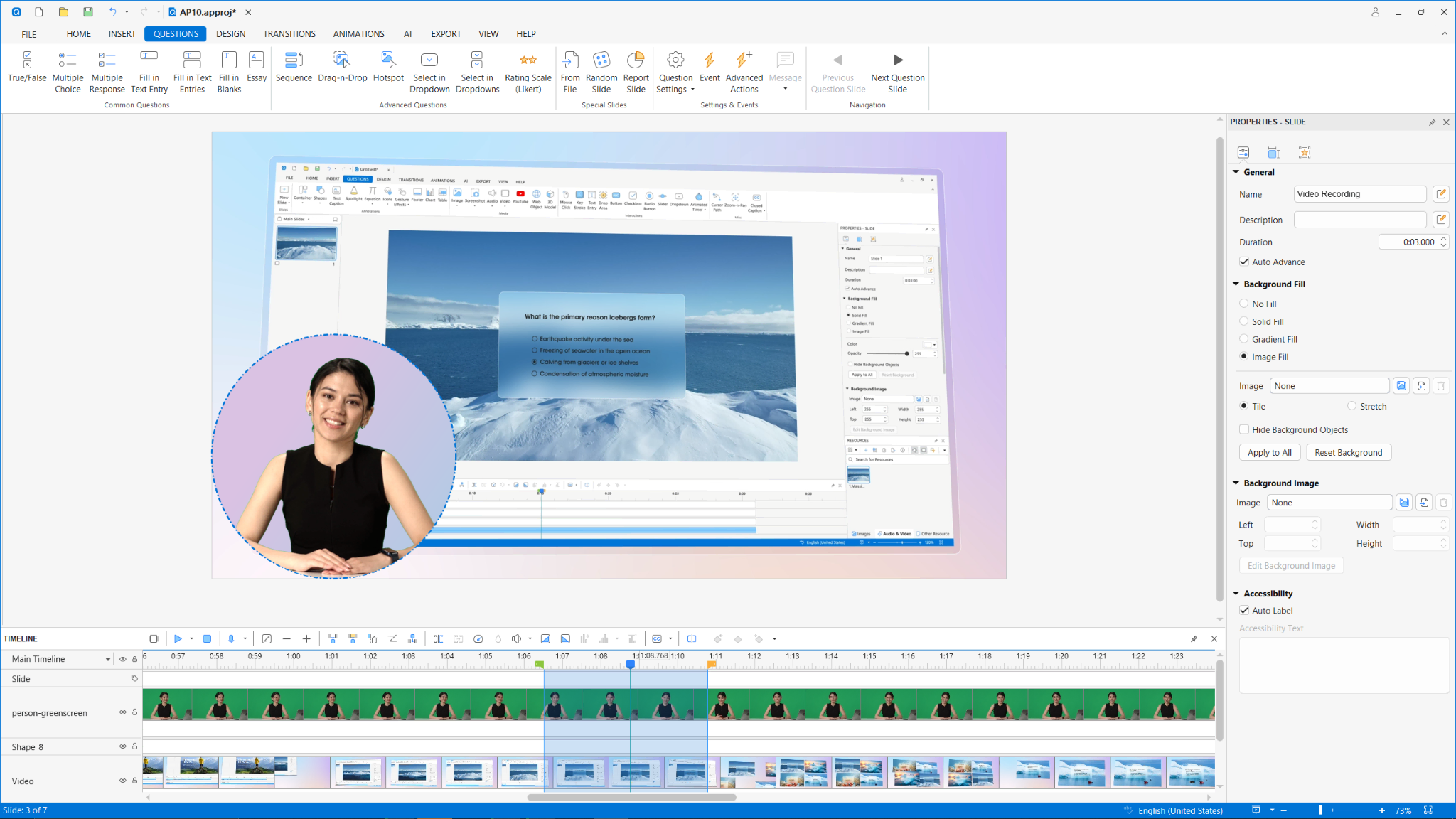
Platforms: Windows, macOS. If you are searching for the Best Screen Recorders for Windows or macOS that do more than just capture your screen, this is a top-tier choice.
Learning curve: Moderate
Best for: Educators, instructional designers, corporate trainers, IT professionals
If your goal is not just “edit a video,” but build training:this is the only option in this list that combines:
- Screen recording + professional video editing
- Interactive eLearning elements
- LMS-ready exports
- Clean exports without watermark
Key features that matter for educators
- Screen recording + video editing in one workflow
- Record screen + webcam + system audio together.
- Edit in a non-destructive timeline (so you iterate faster without “starting over”).
- Interactive eLearning elements
- Add quizzes, branching scenarios, click simulations, and drag-and-drop interactions directly on the timeline.
- Text-to-Speech & Closed Captions
- Generate narration and add captions:useful for accessibility and compliance-focused training.
- Multi-export formats
- Export to MP4, HTML5, SCORM 1.2, SCORM 2004, and xAPI for direct LMS deployment.
- Annotation & callout tools
- Highlight UI elements, add arrows, spotlight mouse clicks:perfect for software tutorials.
Pros & cons (honest assessment)
Pros
- No watermark on free version exports
- Screen recording + editing + eLearning authoring in one tool
- SCORM/xAPI export support (rare for free tiers)
- Lightweight enough to run on average hardware
Cons
- Not ideal if you only need pure cinematic video grading
- Some advanced interactions take a bit of learning
Insider pro tip
Use ActivePresenter’s “Smart Capture” mode for software tutorials. It automatically detects mouse clicks and keystrokes, helping you convert raw recordings into simulation layers you can later turn into assessments, reducing manual annotation work.

2) DaVinci Resolve : Best for pro-grade filmmaking (if you’re not doing heavy training interactivity)
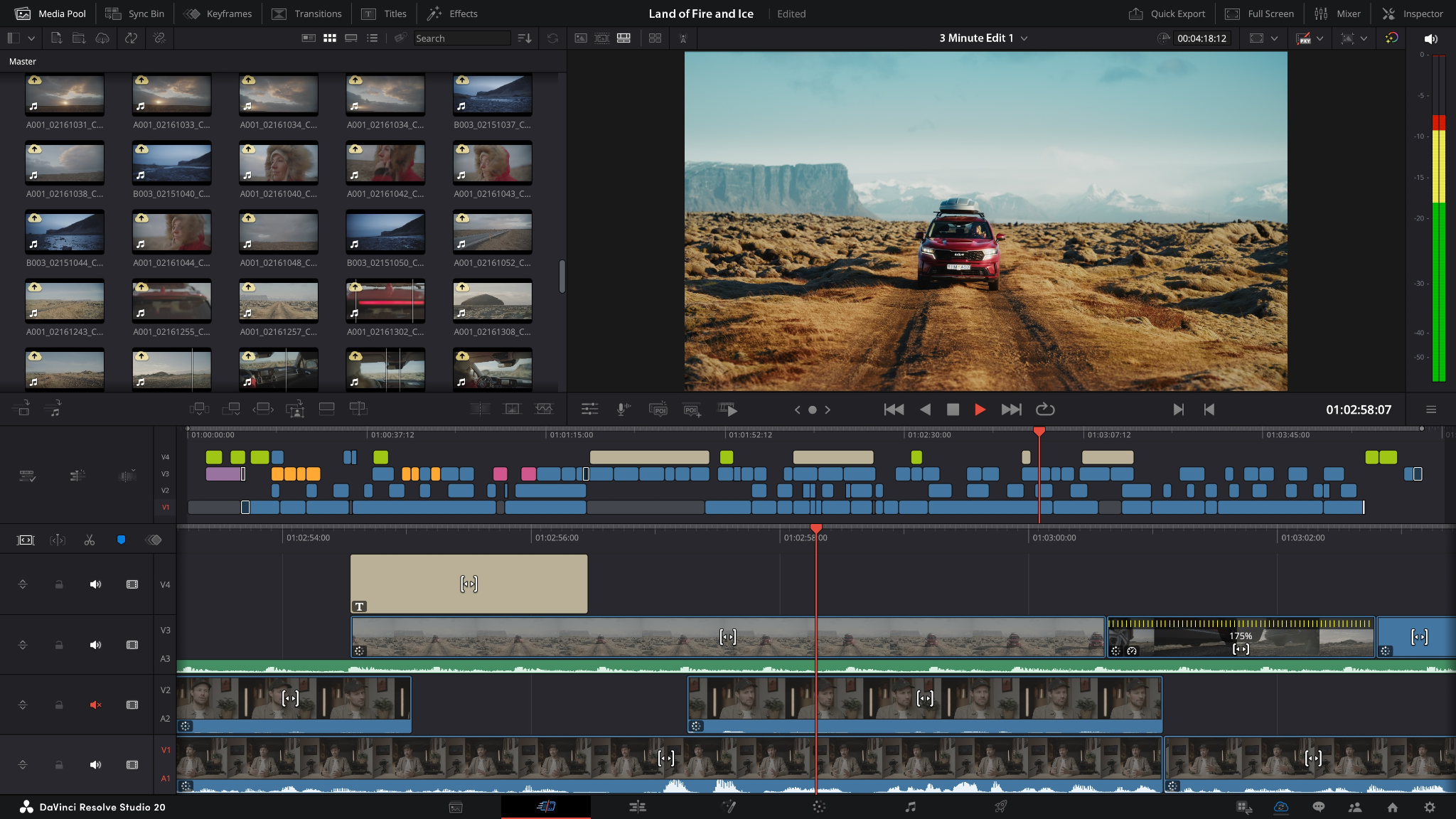
Best for: Pro-grade filmmaking and high-end video finishing (if you don’t need heavy training interactivity).
- Pros:
- Hollywood-Grade Quality: Offers professional production, color correction, and visual effects (Fusion).
- Robust Audio Suite: Features Fairlight, a powerful, built-in digital audio workstation perfect for balancing professional voiceovers.
- High Performance: Extremely stable and smooth playback on supported systems, optimized for handling raw and heavy video files.
- Cons:
- Steep Learning Curve: The interface and advanced features require a significant amount of training time, which may overwhelm an average instructional design team.
- No eLearning Interactivity: Completely lacks training-specific features like interactive quizzes, branching scenarios, or software click-simulations.
- Hardware Demanding: Requires a relatively robust computer setup (especially GPU) to run efficiently compared to lightweight editors.
- Export Options:
- Supported: High-quality standard video formats (MP4, QuickTime MOV, AVI, MKV) with customizable codecs (H.264, H.265, ProRes). Optimized presets for YouTube, Vimeo, and TikTok.
- Not Supported: No HTML5, SCORM, or xAPI. It cannot package files for LMS tracking.
3) CapCut (Desktop) : Best free option for social-style edits (but training interactivity is limited)
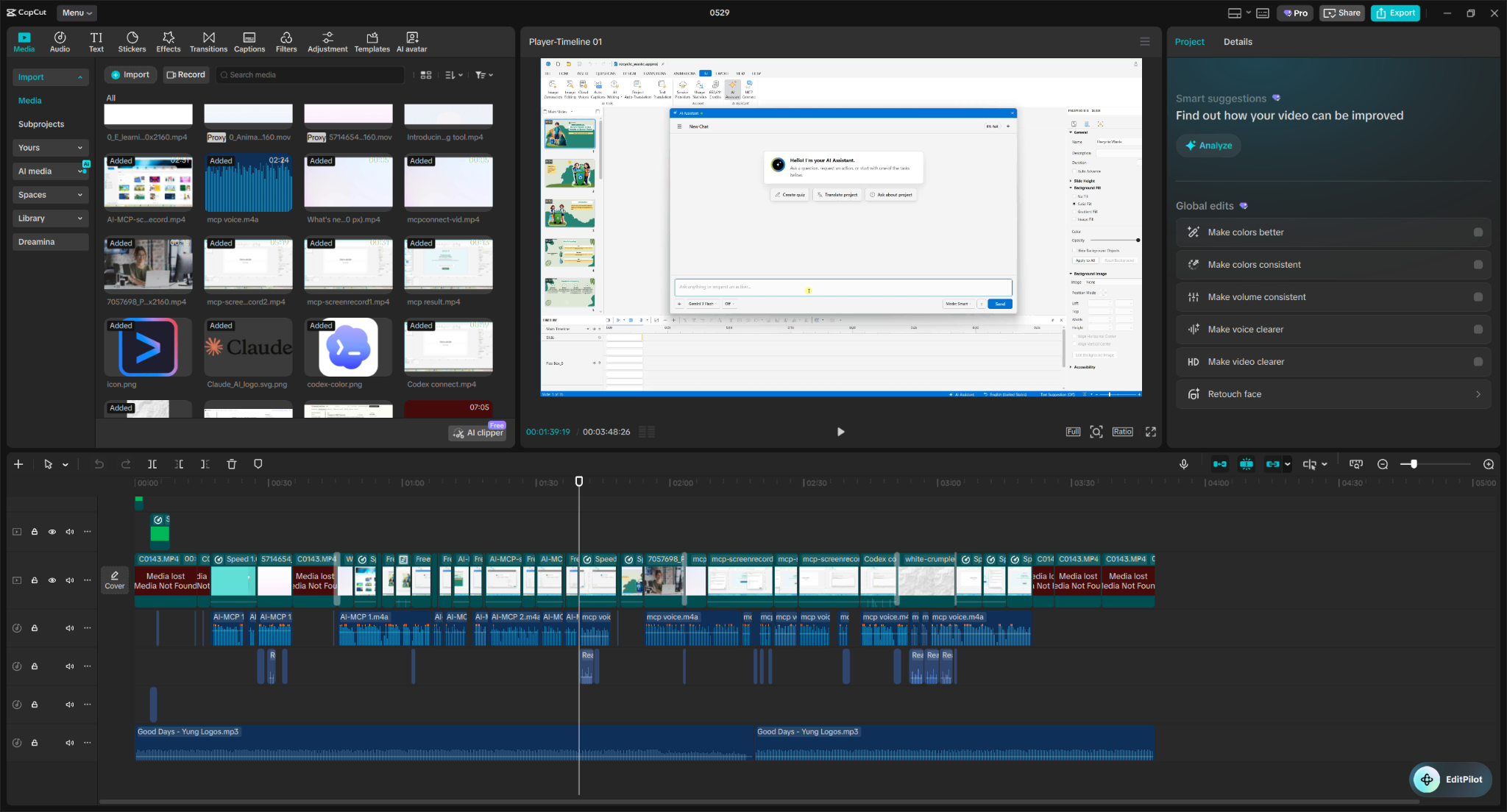
Best for: Social-style edits, quick micro-lessons, and short-form video content.
- Pros:
- Fast & Trend-Focused: Loaded with stickers, trendy transitions, text templates, and effects that appeal to modern audiences.
- Smart Automation: Features excellent AI-driven auto-captions and text-to-speech tools that speed up the editing process for quick tutorials.
- Low Learning Curve: Extremely intuitive drag-and-drop interface that requires zero prior video editing experience.
- Cons:
- Limited Timeline Depth: The “magnetic” timeline layout can feel restrictive when trying to build complex, multi-layered educational walkthroughs.
- Zero LMS Integration: Designed entirely for social and local video playback, meaning it lacks an eLearning pipeline.
- Feature Monetization Risk: While the basic tier is free, many premium templates, effects, and advanced exports are increasingly locked behind a “Pro” paywall.
- Export Options:
- Supported: Standard MP4 and MOV formats, tailored specifically for local storage or direct publishing to social platforms (TikTok, YouTube).
- Not Supported: No HTML5, SCORM, or xAPI.
4) Kdenlive : Best free open-source editor for Linux/power users
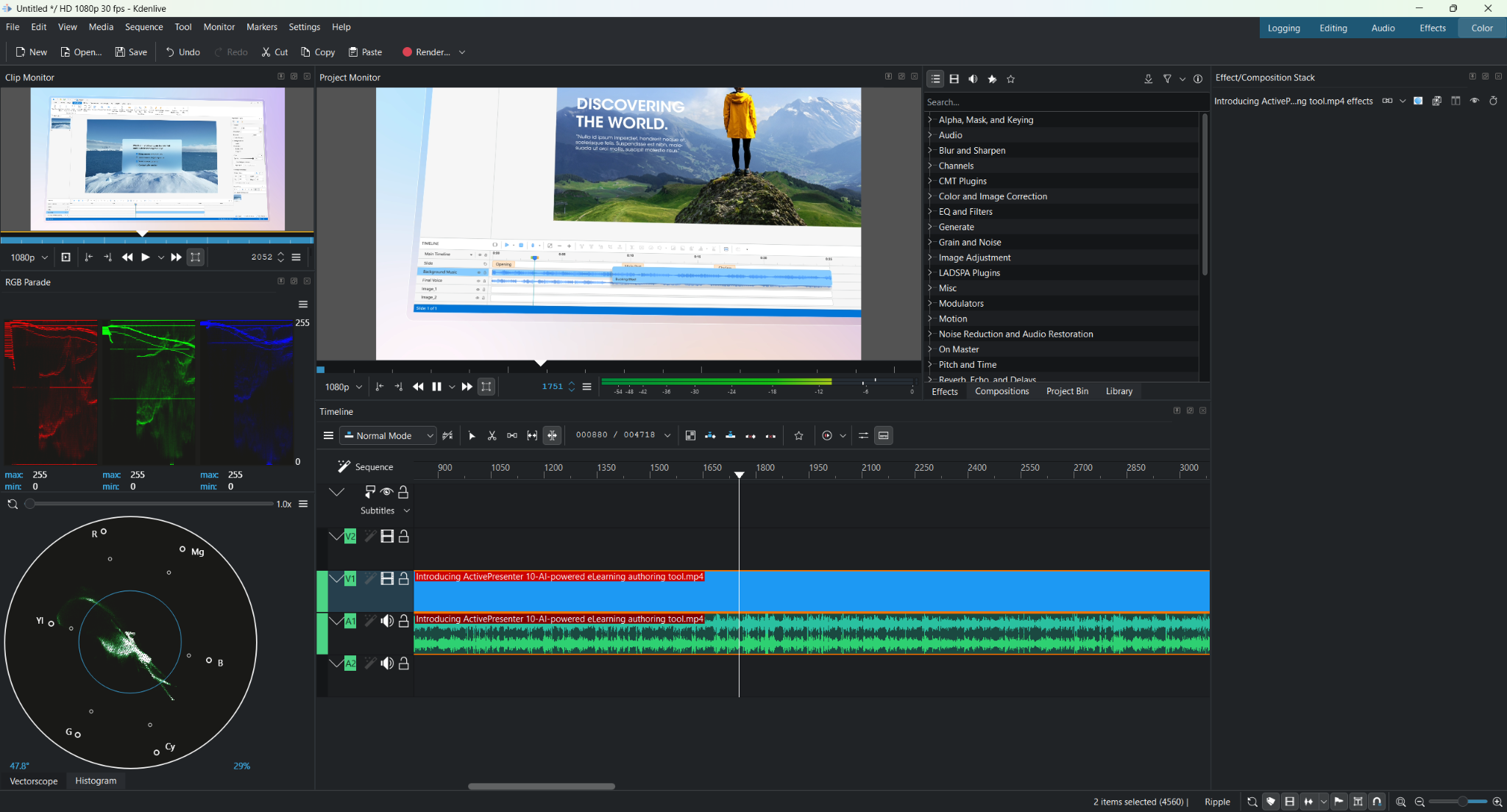
Best for: Open-source enthusiasts, Linux users, and power editors looking for manual flexibility.
- Pros:
- 100% Free & Open-Source: No hidden paywalls, no feature restrictions, and no account registrations required.
- Highly Customizable: The interface is fully modular, allowing educators to rearrange windows and workflows to suit their specific style.
- Resource Friendly: Runs well on a wide variety of hardware, making it a great choice for educational institutions using older computer labs.
- Cons:
- Manual Workflows: Lacks automatic wizard tools or pre-made modern callout templates; building polished annotations and text pop-ups requires manual configuration.
- Stability Variations: Being open-source, it can occasionally experience bugs or crashes depending on the OS version and specific hardware configuration.
- No Training-Specific Tools: Does not include native screen-recording suites or interactive quiz layers.
- Export Options:
- Supported: Wide array of open and proprietary video formats (MP4, WebM, AVI, MPEG) thanks to its powerful FFmpeg backend.
- Not Supported: No HTML5, SCORM, or xAPI.
5) Shotcut Review: Best free editor for beginner on Windows
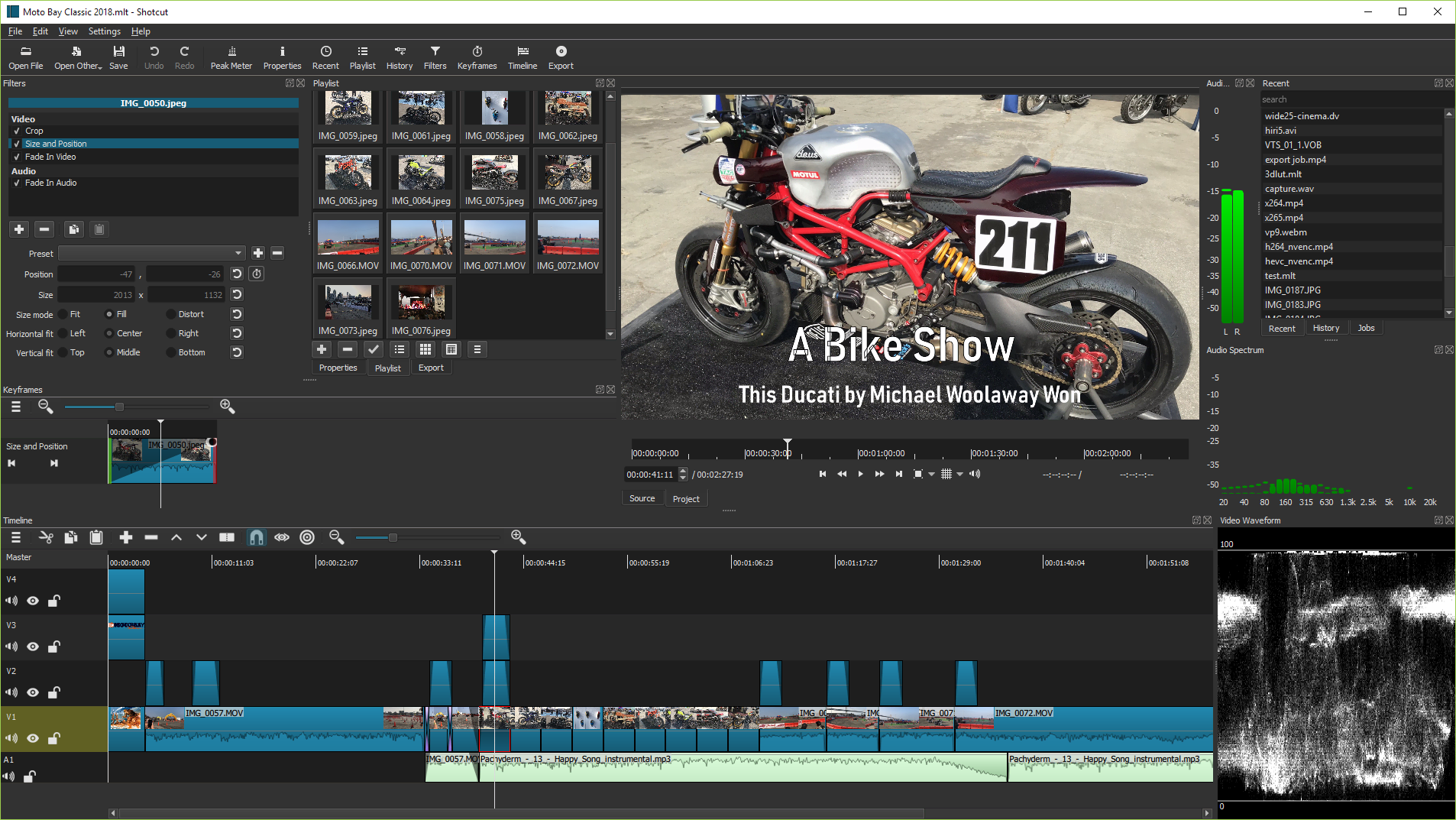
Best for: Beginners looking for a straightforward, lightweight, and friendly entry point into video editing.
- Pros:
- Clean & Simple Interface: Perfect for beginners who only need to trim footage, stitch clips together, and perform basic linear edits.
- Wide Format Support: Handles almost any audio, video, or image format you throw at it without needing to transcode files first.
- Open Source & Lightweight: Free of watermarks, ads, and heavy system requirements, meaning it won’t bog down basic office laptops.
- Cons:
- Clunky Annotations: While it supports basic text and shapes, creating dynamic callouts, arrows, and UI highlights for software tutorials is clunky and tedious.
- Basic Feature Set: Instructional designers will quickly outgrow its feature set if they need automated captions, audio ducking, or advanced multi-track management.
- No Interactivity: Purely a video-in, video-out tool with no engagement tracking mechanics.
- Export Options:
- Supported: Comprehensive local video exports including MP4 (H.264), MOV, WebM, and hardware-accelerated profiles.
- Not Supported: No HTML5, SCORM, or xAPI.
Comparison table (quick decision for trainers)
| Tool | No watermark (free tier) | Best for | Strength | Watch-outs |
| ActivePresenter | ✅ Yes | eLearning & training | Screen recording + editing + interactive authoring + SCORM/xAPI + captions | Not focused on cinematic grading |
| DaVinci Resolve | ✅ Yes (free editor) | Pro video editing | Professional post, color, effects | Steep learning curve; less training/LMS workflow ready |
| CapCut (Desktop) | ✅ Usually clean exports (check specific settings) | Social-style content | Fast edits and templates | Limited LMS/interaction pipeline |
| Kdenlive | ✅ Often clean exports (verify project settings) | Linux editors | Open-source flexibility | More manual workflow for training needs |
| Shotcut | ✅ Often clean exports (verify project settings) | Beginners | Simple interface | Limited training-grade deliverables |
(Note: Always export a 1-minute test clip to confirm your “no watermark” requirement on your exact export settings.)
5-step production flow to speed up training video creation (2–3x faster)
Here’s the workflow I recommend for trainers and educators using free video editor no watermark 2026 tools, especially ActivePresenter when you need both recording and training.
Step 1: Capture with a training mindset (not just “record”)
- Record screen + webcam + audio (if needed).
- Aim for clean narration: avoid recording later.
- If the tool supports it, use a smart capture approach to detect clicks for later guidance.
Step 2: Edit on a timeline with structure
- Cut long pauses.
- Split segments by steps (Step 1, Step 2…).
- Keep a consistent pacing pattern across lessons so learners don’t “reset attention” every minute.
Step 3: Add guidance overlays that reduce learner errors
- Use callouts/arrows to show the exact target UI element.
- Spotlight mouse clicks for software walkthroughs.
- Add captions for accessibility and to prevent “audio-only misunderstanding.”
Step 4: Insert knowledge checks (if your training needs tracking)
- Add quiz questions at critical steps.
- Use branching scenarios if the learner’s action changes the outcome.
- Export in SCORM/xAPI for LMS reporting if your organization tracks completion and scores.
Step 5: Export, test, and standardize
- Export one 1-minute sample first.
- Validate:
- audio clarity,
- caption readability,
- no watermark,
- and LMS packaging success.
- Then export the full course using the same settings.
Let’s get started
If you’re serious about using a free video editor no watermark 2026 that won’t sabotage your timeline at export time, start by testing with a 1-minute lesson build. Then, for training-first workflows, I recommend trying ActivePresenter and exporting your first SCORM/HTML5-ready sample.