
Top 5 Desktop Screen Recorder Tools With No Watermark in 2026
If you’ve spent any time hunting for a “free desktop screen recorder,” you already know the frustration: half the tools slap a giant logo across your finished video, and the other half cap you at five minutes right when your explanation is getting good. After ten years producing training videos, tutorials, and course content, I’ve tested more screen recorders than I’d like to admit — and this list only includes the five that actually deliver what they promise: real recordings, no watermark, no artificial time limits.
Why “No Watermark” Desktop Screen Recorders Are Harder to Find Than You Think
Most “free” screen recorders aren’t really free — they’re demos designed to convert you into a paying customer the moment you try to export something usable. The watermark isn’t a limitation; it’s a sales tactic. That’s not necessarily unethical, but it does mean you need to know exactly which tools genuinely offer clean exports before you invest hours recording something you can’t actually use.
The good news: a handful of tools do gate advanced features (SCORM export, cloud storage, and similar extras) without holding your basic recording hostage. The fundamental promise — record your PC screen with audio, export without a watermark, no time limit — is achievable for free, if you know where to look.
How We Evaluated These 5 Desktop Screen Recorder Tools
Rather than relying on marketing pages, I tested each tool against five practical criteria that predict whether it’ll survive a real project:
| Criteria | Why It Matters | What to Check |
| Watermark-free export | Non-negotiable for professional output | Verify on the exported file, not just the preview |
| No recording time limit | Real training sessions run 20–75 minutes | Test with a 30+ minute recording before committing |
| Simultaneous audio capture | Most tutorials need narration + app sounds | Confirm system audio and mic can record together |
| Built-in video editor | Eliminates juggling multiple apps | Look for a multi-track timeline, not just trim/cut |
| Export format flexibility | Different platforms need different formats | MP4 (universal), SCORM/xAPI (eLearning), HTML5 |
With that framework, here’s how the five tools actually stack up.
Top 5 Desktop Screen Recorder Tools With No Watermark
1. ActivePresenter — Best All-in-One for Training & eLearning
Platform: Windows, macOS | Price: Free (Pro available) | Watermark: None | Time Limit: Unlimited
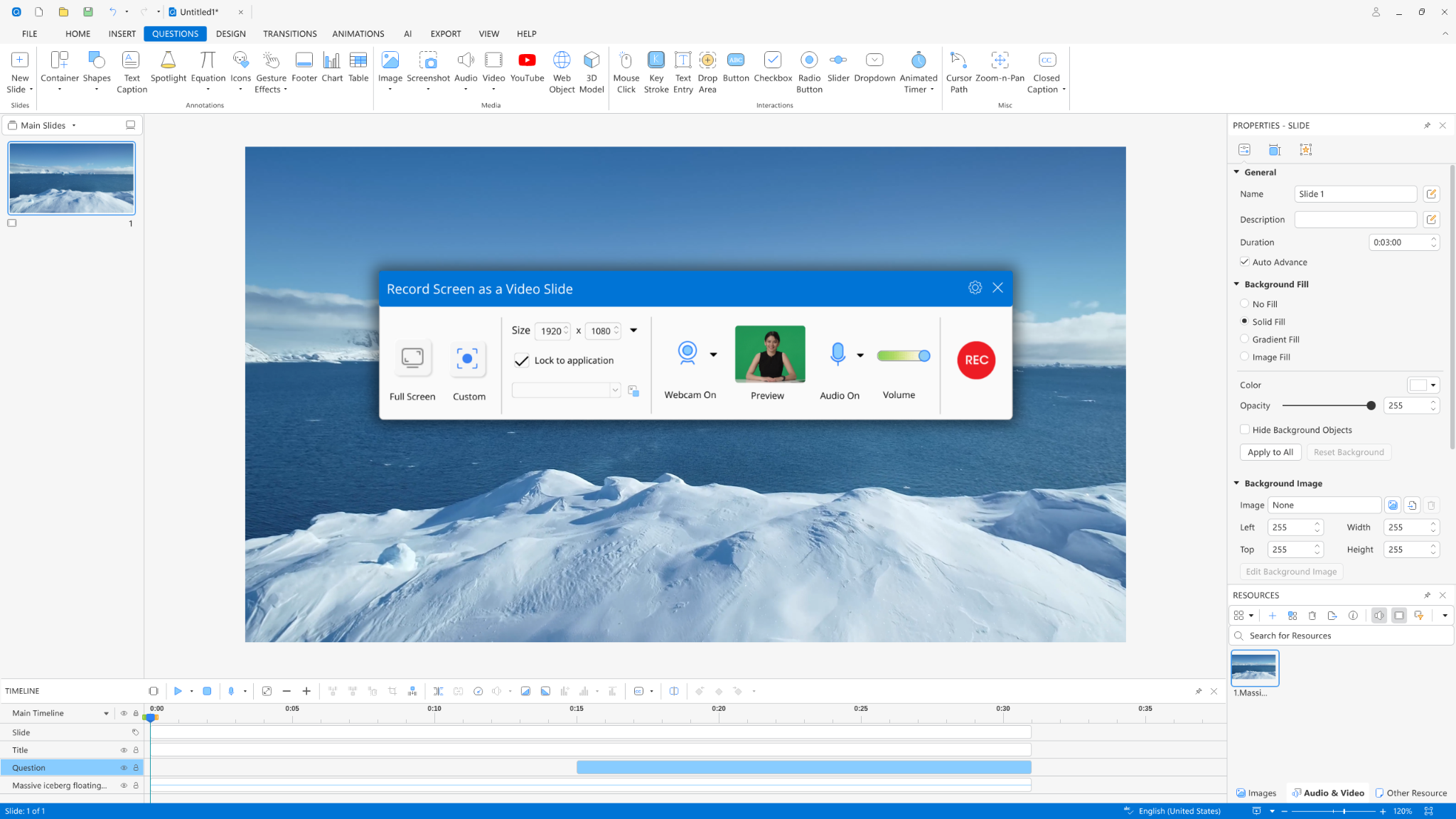
ActivePresenter is the rare case where the free version is genuinely usable for real work — unlimited recording, zero watermarks, simultaneous system audio + microphone capture, and a full multi-track video editor built into the same application. You’re not recording in one app and editing in three others; it’s one continuous workflow.
What sets it apart:
- Multi-track timeline editor — layer screen capture, webcam, mic audio, and system audio on separate tracks, with independent level control.
- Non-destructive editing — your original recording is never altered. Every cut, every effect is reversible, which matters enormously when a client asks for “just one small change” three weeks after you thought the project was done.
- Comprehensive annotation tools — cursor highlights, spotlight effects, zoom-n-pan, shapes, and text callouts to direct learner attention.
- Split video feature — perfect for breaking long recordings into microlearning chunks.
- SCORM/xAPI export (Pro) — for teams building actual eLearning courses that need to plug into an LMS and track learner progress.
- AI Agent connectivity via MCP Connect (Pro) — lets you plug ActivePresenter into broader AI-driven authoring or automation workflows, which is increasingly relevant as more L&D teams build AI-assisted course pipelines.
Expert Insight: In over a decade of producing training content, the single biggest workflow killer I’ve seen is recording in one tool and editing in another. Every export-reimport cycle introduces quality loss and eats time you don’t get back. ActivePresenter’s biggest advantage isn’t any single feature — it’s that recording and editing live in the same timeline, so a mistake in your narration doesn’t mean re-recording the whole session.
What the Free version doesn’t include: SCORM/xAPI export, Linux support, and cloud-based collaboration (it’s a desktop app). For most trainers and course creators, none of that blocks day-one usability.
Best for: Trainers, educators, L&D teams, and course creators who need to record and edit in one workflow.
👉 If you’re building anything beyond a quick clip — training modules, product walkthroughs, onboarding courses — this is the one worth installing first.
2. OBS Studio — Best for Raw Capture Power
Platform: Windows, macOS, Linux | Price: 100% Free (open source) | Watermark: None | Time Limit: Unlimited

OBS Studio is the gold standard for raw screen capture — it’s what streamers use, and for good reason. Rock-solid recording, granular audio mixing, and zero cost with zero restrictions. Scene-based recording lets you switch layouts on the fly, and it records system audio and microphone simultaneously with fine mixer control.
The catch: OBS has no built-in editor. It captures beautifully, but you’ll need a second tool (like ActivePresenter or DaVinci Resolve) to trim, annotate, or polish the footage. It’s also the only cross-platform option on this list, making it the default choice if you’re on Linux.
Best for: Anyone who wants maximum recording control and doesn’t mind editing elsewhere.
3. ShareX — Best for Quick Captures & Screenshots
Platform: Windows | Price: 100% Free (open source) | Watermark: None | Time Limit: Unlimited
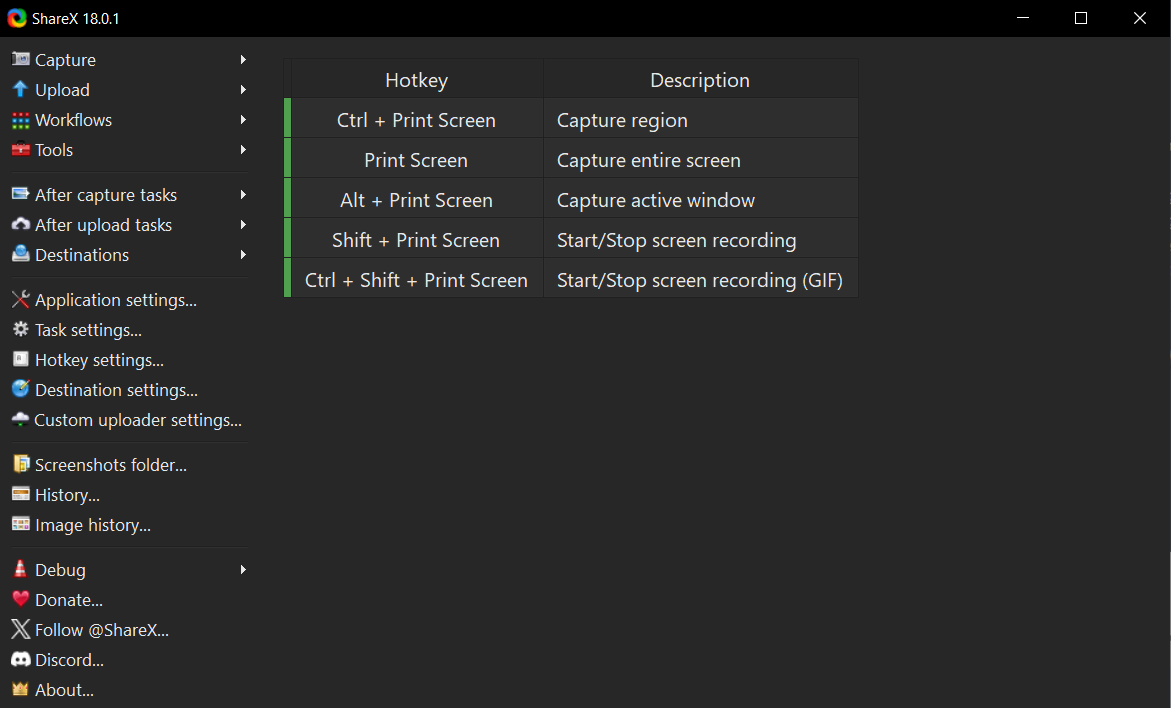
ShareX is built for speed — screenshots, GIFs, and short screen recordings with an enormous library of automated workflows (auto-upload, auto-annotate, auto-rename). It’s not designed for long-form training video, but for quick documentation or bug reports, nothing is faster.
Best for: Support teams, QA testers, and anyone who needs a screenshot-to-share pipeline more than a video editor.
4. ScreenPal (formerly Screencast-O-Matic) — Best for Casual Quick Shares
Platform: Windows, macOS (browser-based option too) | Price: Free tier with limits | Watermark: None on Free tier for basic recordings | Time Limit: 15 minutes on Free tier

ScreenPal’s biggest strength is how fast you can go from “record” to “shareable link.” The interface is friendly, and basic editing (trim, text, simple transitions) is built in. The 15-minute cap and lighter editing toolkit make it less suited for anything long-form or complex.
Best for: Quick internal updates, customer support clips, or a 2-minute walkthrough you need shared in 5 minutes.
5. Xbox Game Bar — Best for Zero-Setup Windows Recording
Platform: Windows 10/11 (built-in) | Price: Free (already installed) | Watermark: None | Time Limit: Unlimited for most use cases
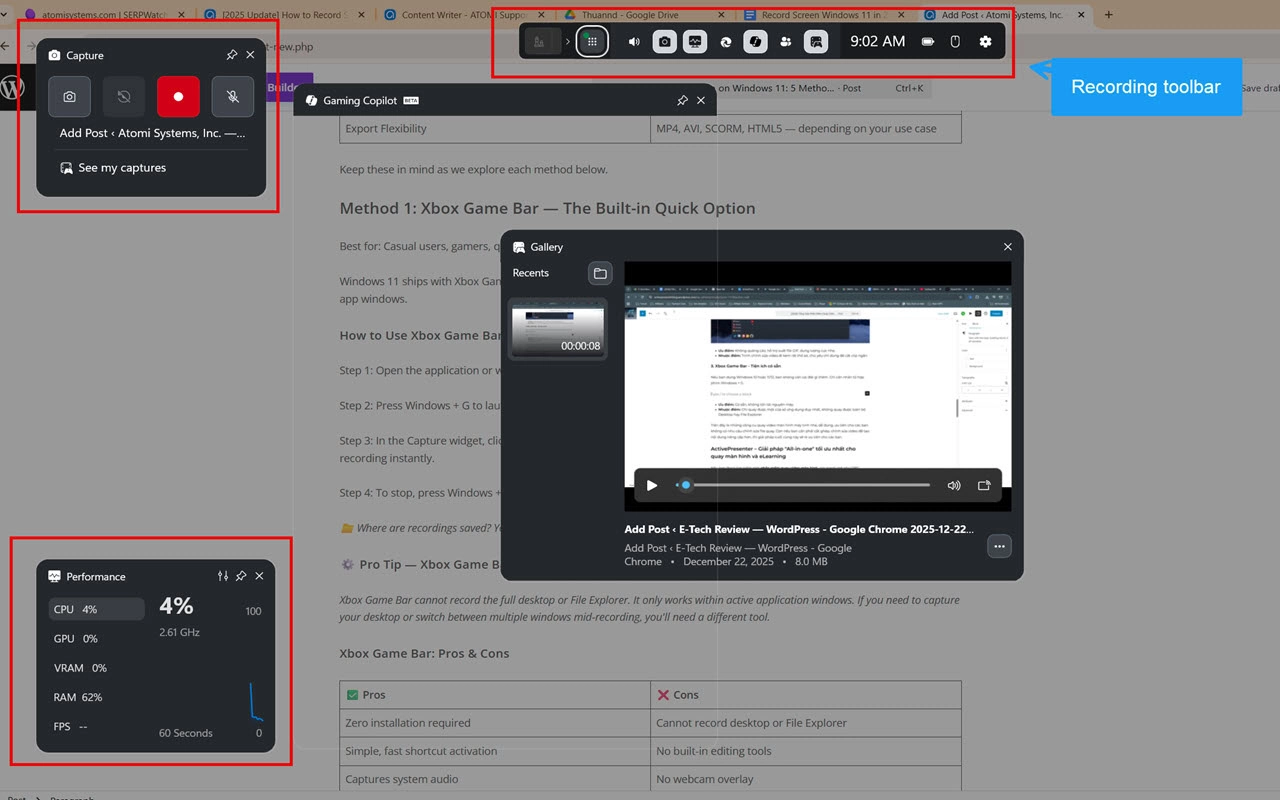
It’s already on your machine. Press Win+G, hit record, done. Xbox Game Bar has no editing tools and can be finicky recording File Explorer or the desktop itself (it was built for games, after all), but for a fast, no-install capture, it’s genuinely useful.
Best for: One-off recordings when you don’t want to install anything.
Head-to-Head Comparison Table
| Tool | Watermark | Time Limit | Built-in Editor | Multi-track Audio | Best For |
| ActivePresenter | None | Unlimited | ✅ Multi-track | ✅ | Training & eLearning |
| OBS Studio | None | Unlimited | ❌ | ✅ | Raw capture power |
| ShareX | None | Unlimited | Basic | ✅ | Quick captures |
| ScreenPal | None (Free tier) | 15 min | Basic | ✅ | Casual quick shares |
| Xbox Game Bar | None | Unlimited | ❌ | ✅ | Zero-setup recording |
How to choose your desktop Screen Recorder
Choosing the right screen recorder isn’t about finding the software with the longest feature list—it’s about finding the tool that removes the most friction from your daily workflow. After years of watching creators get bogged down by the wrong software, I recommend running your decision through this four-point checklist:
- Define your final output: What exactly are you making? If you are capturing a glitch to send to IT or a quick 30-second workflow for a colleague, you need speed over polish. Tools like ShareX or Xbox Game Bar are perfect here. If you are building a structured onboarding module or a paid course, you need a robust tool like ActivePresenter that can handle annotations, pacing, and multi-track audio.
- Assess your editing tolerance: Be honest with yourself about your post-production workflow. Recording in one app (like OBS Studio) and editing in another (like Premiere or DaVinci) gives you immense power, but it also doubles your file management and increases rendering time. If you want to avoid juggling multiple applications, prioritize an all-in-one recorder and editor.
- Verify your export requirements: Every tool on this list will hand you a standard MP4 video file. However, if you are working in corporate Learning and Development (L&D), an MP4 often isn’t enough. If your final package needs to plug into a Learning Management System (LMS) to track completion rates or quiz scores, you must choose a tool capable of SCORM, xAPI, or HTML5 exports.
- Check your hardware and operating system: Your operating system dictates your reality. Windows users have access to every tool on this list. Mac users have plenty of options but will have to skip ShareX and Xbox Game Bar. If you are running Linux, bypass the rest of the list and install OBS Studio immediately.
Final Verdict: Which Desktop Screen Recorder Should You Actually Use?
Here’s the decision framework I’d give a colleague after a decade of doing this:
- Recording AND editing training content? Start with ActivePresenter. The all-in-one workflow saves more time than any individual feature ever will.
- Only need raw capture, will edit elsewhere? Use OBS Studio, then finish in ActivePresenter.
- Need a 2-minute clip shared in 5 minutes? ScreenPal or Xbox Game Bar gets you there fastest.
- On Linux? OBS Studio is your only real option here.
Ready to Build Better Training Videos?
You’ve read the comparison, but the fastest way to know which tool fits your workflow is to actually hit record. Stop wrestling with forced watermarks, restrictive time limits, and disjointed software that slows down your production.
If you want a professional, all-in-one recording and editing environment that respects your time and your final product, ActivePresenter is where you should start.
📥 DOWNLOAD ACTIVEPRESENTER FOR FREE (Available for Windows and macOS — No watermarks, no time limits)
Still have questions after you install? The Atomi Systems community forum is highly active, and their actual development team jumps in to answer questions daily. It’s one of the most genuinely helpful software communities in the eLearning space.
Your expertise deserves to be captured clearly. Don’t let a watermark—or the wrong tool—get in the way.