
Need to turn speech in audio or video into captions or editable text? A local model in ActivePresenter 10.6 lets you process media directly on your computer instead of relying on cloud Speech-to-Text for every transcription. As an AI-powered eLearning authoring tool, ActivePresenter gives you another way to work with spoken content while staying inside the same authoring workflow.
In ActivePresenter 10.6, the “local model” in this tutorial refers specifically to Local (Offline) Speech-to-Text. It uses an installed Whisper model to process the selected audio or video on your computer instead of uploading the media to a cloud Speech-to-Text provider. Once the required local transcription tool and model are available, Auto Captions can also run without a network connection.
In this tutorial, you’ll learn how to download and manage a local model, use it to generate Auto Captions, and transcribe audio or video into editable text in ActivePresenter.
If you’re not using ActivePresenter 10.6 or later, download the latest version before getting started.

Download and Manage a Local Model in ActivePresenter 10.6
Before using Local Speech-to-Text for captions or transcription, make sure a local model is available on your computer. Follow these steps to access and manage it.
Step 1: Open Auto Captions
First, open your project and select an audio or video object on the Canvas or Timeline.
Then, go to the AI tab and select Auto Captions.
You can also open the same feature from Media Tools > Auto Captions or Insert > Closed Captions > Auto Captions.
Step 2: Select Local (Offline) Speech-to-Text
In the Auto Captions dialog, open the Provider list and choose Local (Offline) Speech-to-Text.
Once you select this provider, the Model field appears. From here, you can choose an installed local model or access the model-management options.
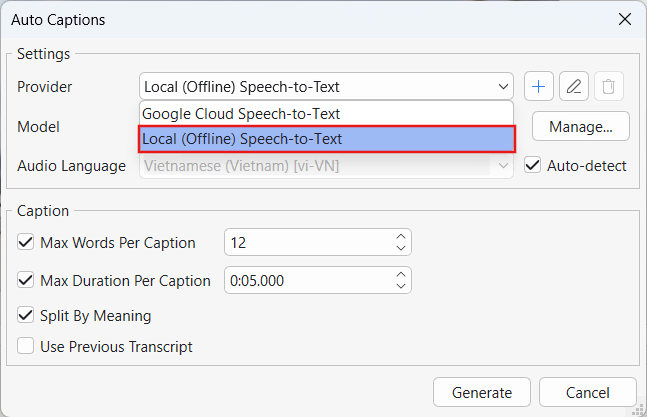
Step 3: Open Local Speech-to-Text Models
Next to Model, click Manage….
The Local Speech-to-Text Models dialog opens. This is where you can download and manage the models used by the local Speech-to-Text provider.
Step 4: Download and Manage the Model
The Local Speech-to-Text Models dialog provides several controls:
- Download: Download an available model to your computer.
- Set Active: Set an installed model as the active model for Local Speech-to-Text.
- Delete: Remove a downloaded model that you no longer need. Bundled models cannot be deleted from this dialog.
- Use custom thread count: Set how many CPU threads the local transcription tool uses.
Once a model is available, you can select it in supported Local Speech-to-Text workflows without downloading it again each time.
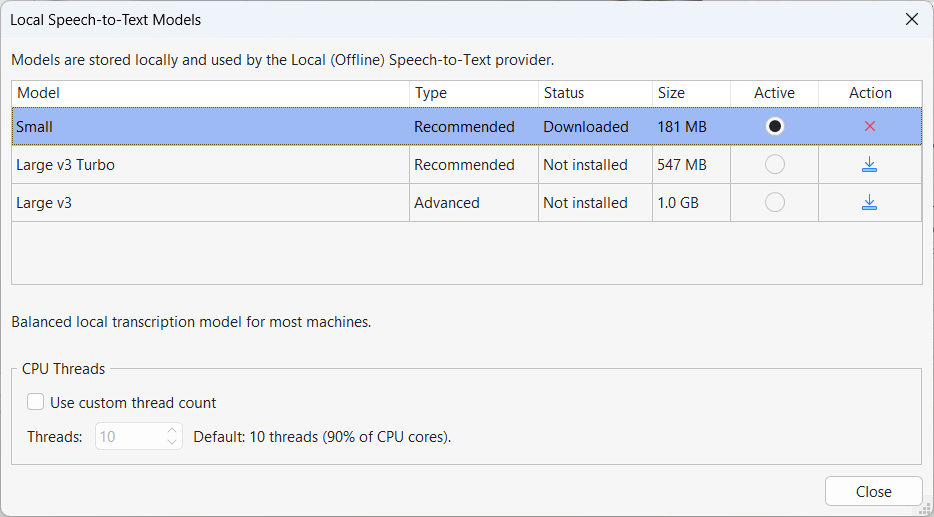
Note: If you select Local (Offline) Speech-to-Text when no local model is installed, ActivePresenter prompts you to open Model Manager and download one.
Use a Local Model to Generate Auto Captions
Once the model is ready, you can use it to turn speech in your audio or video into synchronized closed captions.
Step 1: Select the Audio or Video
Select one or more audio or video objects on the Canvas or Timeline.
If you select multiple media objects, ActivePresenter can generate captions for the selected objects in one operation.
Step 2: Open Auto Captions
Go to AI > Auto Captions.
The Auto Captions dialog appears.
Step 3: Choose the Local Provider and Model
In Provider, choose Local (Offline) Speech-to-Text.
Then, select the installed model you want to use from the Model field.
If no model is available, click Manage… and follow the model setup process described in the previous section.
Step 4: Choose the Language
Under Language, select the language spoken in the media.
If you are not sure which language is used, you can choose Auto-detect where this option is available.
Step 5: Check the Essential Caption Settings
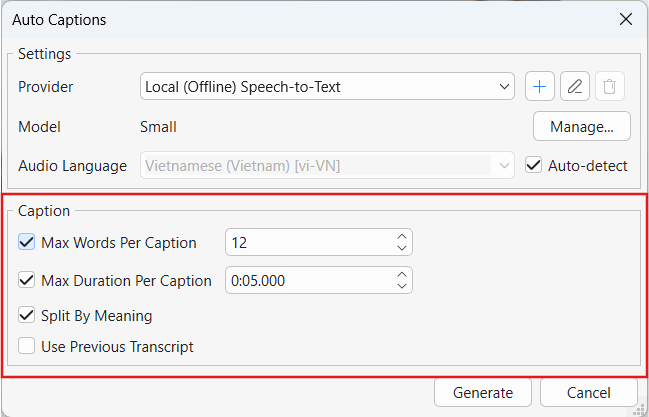
Before generating the captions, review the main options in the Caption section:
- Max Words Per Caption: Controls the maximum number of words that can appear in a caption segment.
- Max Duration Per Caption: Limits how long each caption segment can remain on screen.
- Split By Meaning: Splits captions at meaningful speech boundaries, such as clauses or sentences.
- Use Previous Transcript: Reuses an existing transcript when available instead of transcribing the media again.
For this local-model workflow, you only need to adjust these settings as required for your content.
Step 6: Generate and Review the Captions
When the settings are ready, click Generate.
ActivePresenter processes the selected media and creates the captions. When the process finishes, the Edit Closed Caption dialog appears.
Review the generated text before publishing. Pay particular attention to names, acronyms, technical terms, and other words that may require manual correction.
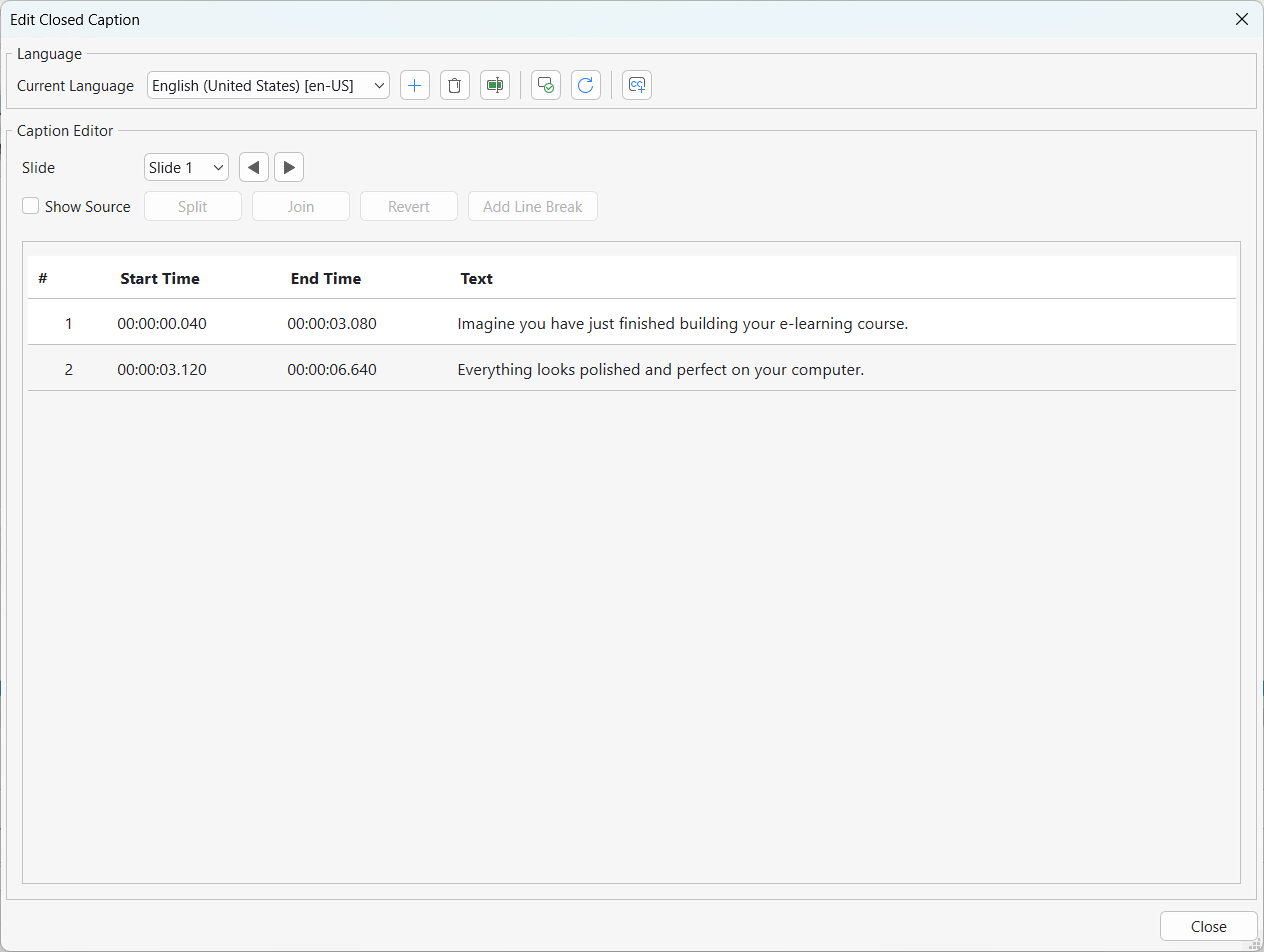
If you need more detailed instructions for editing and managing the generated captions, see the Auto Captions tutorial.
Use a Local Model to Transcribe Audio or Video to Text
Auto Captions are useful when you want synchronized caption nodes in the project. However, sometimes you only need the spoken content as editable text.
In that case, use Transcribe File or Transcribe to Text. These commands convert audio or video into text without automatically creating closed caption nodes.
Transcribe an External Media File
Use Transcribe File when the audio or video has not been added to the current project.
- Go to the AI tab and select Transcribe File.
- Select a supported audio or video file.
- In Provider, choose Local (Offline) Speech-to-Text.
- Select an installed Model.
- Choose the appropriate Language when needed.
- Click Transcribe.
The Local Speech-to-Text provider processes the selected media on your computer using the installed Whisper model.
Transcribe Media Already in the Project
If the media is already on a slide, you do not need to select the file again.
- Select the audio or video object.
- Right-click the selected object.
- Choose Transcribe to Text.
- Under Provider, choose Local (Offline) Speech-to-Text.
- Select the model and language.
- Click Transcribe.
There is no need to repeat the model installation process if the required model is already available.
Use the Transcript
After the transcription is complete, ActivePresenter gives you several ways to use the text.
Copy
You can copy:
- Plain Text
- Text with Timestamps
This is useful when you want to paste the transcript into another part of your project or another application.
Export…
You can export the transcript as:
- Plain Text (.txt)
- Timestamped Text (.txt)
- SubRip Captions (.srt)
- WebVTT Captions (.vtt)
This gives you flexibility if you want to reuse the transcript or subtitle data elsewhere.
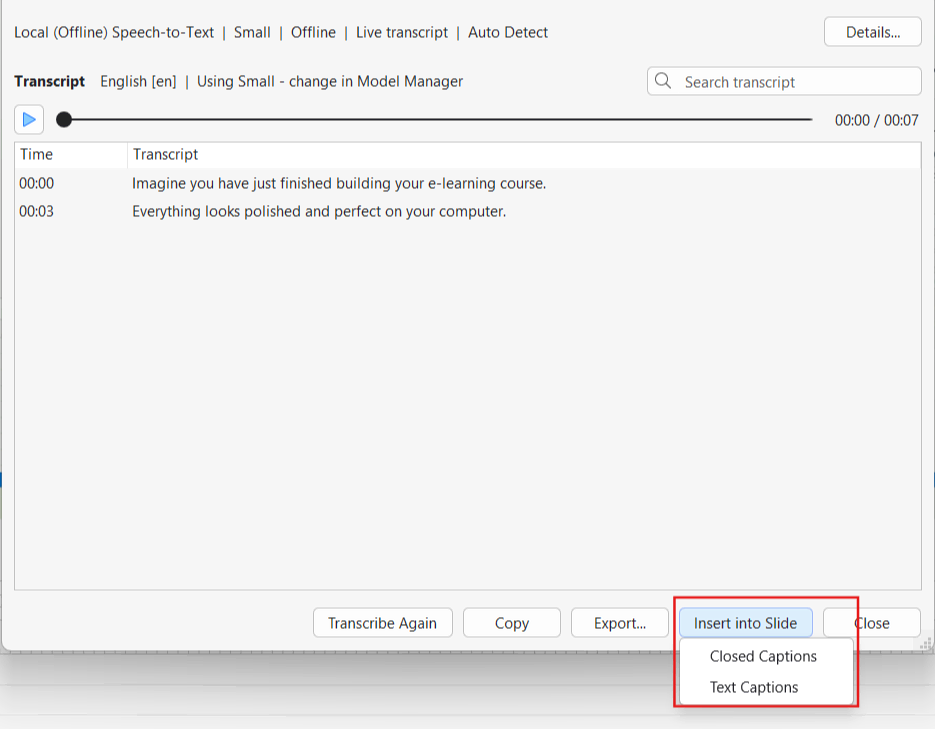
Insert into Slide
When an editable slide is active, choose Insert into Slide to add the transcript directly to the slide as a text object.
Tips for Working with a Local Model
A few simple checks can make the local Speech-to-Text workflow easier to use:
- Download the model before you need Auto Captions offline. Make sure the required local components are ready while you still have a network connection.
- Test a short media clip first. This lets you check the selected language and transcript before processing longer recordings.
- Choose from the installed models available in your current ActivePresenter build.
- Use clear source audio and the correct language. Cleaner speech is generally easier to review and work with.
- Proofread the final text. Check names, acronyms, technical terms, and specialized vocabulary before using the captions or transcript in your final content.
Conclusion & Next Steps
Transcribe File adds another practical way to work with recorded media in ActivePresenter. You can turn external audio or video into editable text, then reuse the transcript for documentation, subtitles, or slide content without moving between multiple tools.
Combined with ActivePresenter’s eLearning authoring, screen recording, video editing, captioning, and AI-assisted features, this workflow helps content creators move from source media to finished learning content in a more connected environment.
Ready to make more of your audio and video content with ActivePresenter?
See Also