
Have an audio or video recording and need its spoken content as editable text? Manually replaying the media and typing everything can take a lot of time. With the Transcribe File in ActivePresenter, you can start from an external media file and turn its speech into text directly in this AI-powered eLearning authoring tool.
Transcribe File converts speech from an external audio or video file into editable text. Unlike Auto Captions, it does not automatically create closed caption nodes. Before starting, you can choose the Speech-to-Text provider and configure the relevant transcription settings.
In this tutorial, you’ll learn how to open Transcribe File, select an external media file, configure Speech-to-Text, review the generated text, and then copy, export, or insert the transcript into a slide in ActivePresenter.
If you’re not using the latest supported version of ActivePresenter, download it before getting started.

Open Transcribe File in ActivePresenter
You can start the transcription directly from an external audio or video file. There is no need to add the media to a project first just to create a transcript.
Step 1: Open Transcribe File
Go to the AI tab and select Transcribe File.
This command is designed for media that is still outside the current project, so it is the most direct entry point when you already have a recording you want to transcribe.

Step 2: Select the Audio or Video File
Choose the supported audio or video file you want to transcribe.
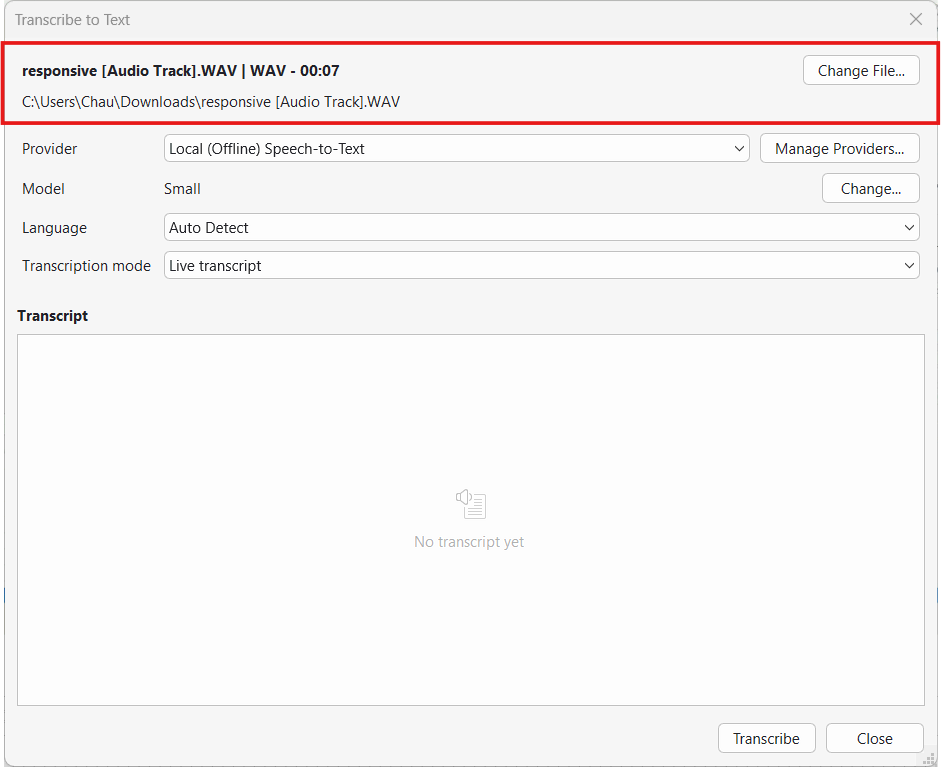
Once the file is selected, the Transcribe to Text dialog appears. The source field shows the media file you selected, making it easy to confirm that you are working with the correct recording before continuing.
Note: Although you start this workflow with Transcribe File on the AI tab, the dialog that opens is named Transcribe to Text. The same dialog is also used for media that is already inside a project. In that case, select the audio or video object, right-click it, and choose Transcribe to Text.
So, the different labels do not mean that you have opened the wrong feature. ActivePresenter uses the same transcription interface whether the media starts outside the project or is already part of it.
Configure Speech-to-Text Settings
Before starting the transcription, check the settings in the Transcribe to Text dialog. You only need to configure the options that apply to the provider you are using.
Step 1: Choose the Speech-to-Text Provider
Open the Provider list and choose the Speech-to-Text provider that will handle the transcription.
One available option is Local (Offline) Speech-to-Text. When you choose it, ActivePresenter processes the selected media on your computer using an installed Whisper model.
This gives you another way to run the transcription without changing the rest of the workflow. You still select the source, configure the applicable settings, and generate the transcript from the same dialog.
Step 2: Select a Model When Applicable
The Model field appears when Local (Offline) Speech-to-Text is selected.
Choose one of the installed models. If you need to set up or manage models, click Manage….
For detailed instructions about downloading and managing models, see How to Work with a Local Model in ActivePresenter 10.6.
If no local model is installed, ActivePresenter prompts you to open Model Manager and download one when you select Local (Offline) Speech-to-Text.
Step 3: Choose the Language
Under Language, choose the language spoken in the recording.
If you already know the language, selecting it removes that uncertainty before transcription. You can also use the provider’s automatic language detection when that option is available.
Transcribe the File and Review the Result
Once the source and transcription settings are ready, you can generate the editable text.
Step 1: Click Transcribe
Select Transcribe to start converting the speech in the selected media into text.
At this point, ActivePresenter uses the provider and settings you configured in the previous section. You do not need to set up a separate workflow for the result.
Step 2: Review the Generated Transcript
When the transcript is ready, read through it before copying, exporting, or adding it to your project.
Pay particular attention to:
- names and product names;
- acronyms;
- technical terminology;
- specialized vocabulary.
These are practical review points for any generated transcript. Making corrections at this stage also means you can work with cleaner text in the next step, regardless of how you plan to reuse it.
Work with the Transcript
After transcription, you do not have to keep the result in one fixed format. ActivePresenter lets you reuse the same transcript in several ways depending on what you need next.
Copy the Transcript
Open Copy and choose one of these options:
- Plain Text
- Text with Timestamps
Choose Plain Text when you only need the spoken content, such as when you want to paste the transcript into notes, a script, or another document.
Choose Text with Timestamps when timing references matter. This can be useful when you need to connect parts of the transcript back to specific points in the recording.
Export the Transcript
Select Export… to save the result in one of the supported formats:
- Plain Text (*.txt)
- Timestamped Text (*.txt)
- SubRip Captions (*.srt)
- WebVTT Captions (*.vtt)
The TXT options are useful when your next step is mainly text editing or documentation.
If the transcript needs to continue into a subtitle or caption workflow, SRT or VTT gives you a format that preserves timing information without requiring you to manually rebuild it.
Insert the Transcript into a Slide
If you want to continue working with the generated text inside the current project, choose Insert into Slide.
ActivePresenter inserts the transcript as a text object on the active slide. This option is available when an editable slide is active. Pasted text
That means you can move directly from transcription to slide editing without first copying the text and creating a new text object manually.
Transcribe External Files or Project Media
Where your media is located determines how you enter the transcription workflow.
- For an external audio or video file: Go to AI > Transcribe File, then choose the media file you want to transcribe.
- For audio or video already in the project: Select the media object, right-click it, and choose Transcribe to Text.
Both routes open the Transcribe to Text dialog, where you continue with Source, Provider, Model when applicable, Language, and the Transcribe action.
So, the transcription process itself does not change. You simply use the entry point that matches where the media is located.
Note: If you want synchronized closed caption nodes rather than a standalone editable transcript, use Auto Captions.
Tips for a Better Transcription Workflow
A few checks can make the process easier and help you avoid repeating unnecessary steps:
- Check Source before transcribing. Make sure the intended media file is loaded before you start.
- Choose the spoken Language when you know it. Use automatic detection only when the selected provider supports it.
- Prepare the local model first when using Local Speech-to-Text. If model setup is required, complete it before starting a longer transcription workflow.
- Review the transcript before using the output actions. It is easier to correct names, acronyms, and specialized terms before you copy, export, or insert the text.
- Test a short recording first when useful. This is a practical way to confirm that your selected provider and language settings match the media before working with a longer file.
Conclusion & Next Steps
That’s how to work with Transcribe File in ActivePresenter. Open Transcribe File, choose the external media, configure the Speech-to-Text settings, select Transcribe, review the result, and then decide whether you want to Copy, Export, or Insert into Slide.
Because you can start directly from an external file and reuse the generated transcript in several forms, the same workflow can support different next steps without requiring you to recreate the transcription.
Ready to turn your audio or video files into editable text?
See Also