
Here’s something I learned the hard way after producing interactive training content for over a decade: the tool you record with is not the tool you should author with — unless they happen to be the same application.
I once spent an entire weekend building a compliance training module for a nursing program. Recorded the screen in one app, edited audio in another, added quiz overlays in a third, then exported to SCORM in a fourth. The result? A 12-minute video that took 30+ hours to produce, and when the LMS flagged a scoring error, I had to re-open three different project files just to fix one question.
That experience rewired how I evaluate software. The educators I work with — instructional designers at universities, K-12 teachers building flipped classroom content, corporate trainers onboarding remote teams — don’t have 30+ hours to burn. They need tools where recording, editing, interaction design, and LMS export live under one roof.
So I tested, compared, and stress-tested the market. These are the three interactive training video tools that survived my workflow in 2026.
Here is the thing! If you want the same “under one roof” workflow I use to keep my sanity, ActivePresenter 10 is the smartest investment you’ll make this year. Download and try it free at the link below:

Table of contents
- Why “Interactive” Isn’t a Buzzword — It’s a Pedagogical Requirement
- How I Evaluated These 3 Tools
- The 3 Best Interactive Training Video Tools for Educators in 2026
- Head-to-Head Comparison Table
- 5 Insider Tips for Building Better Interactive Training Videos (Regardless of Tool)
- The Verdict: Which Tool Should You Choose?
- Start Building, Not Just Recording
Why “Interactive” Isn’t a Buzzword — It’s a Pedagogical Requirement
Before we dive into the tools, let’s address the elephant in the room: most training videos aren’t interactive at all. They’re screen recordings with a narrator. Learners press play, zone out, and check a completion box.
Research from the National Training Laboratories’ Learning Pyramid consistently shows that passive video watching yields roughly 20% retention. Add practice-by-doing — clicking, answering, making decisions inside the video — and retention climbs past 75%.
Interactive training video software bridges that gap. The right tool lets you embed:
- Knowledge-check quizzes at decision points (not just at the end)
- Branching scenarios where the learner’s choice determines the next screen
- Software simulations where learners practice clicking through real UI without touching production systems
- Timed feedback loops that correct mistakes in real time
If your tool can’t do at least three of those natively, you’re assembling Frankenstein workflows — and your production time (and your sanity) will pay the price.
How I Evaluated These 3 Tools
I applied six criteria, weighted toward what actually matters in a teaching environment:
| Criteria | What I Measured |
| Recording Quality & Flexibility | Resolution support, webcam overlay, dual-audio capture, region selection |
| Editing Power | Multi-track timeline, annotation tools, cursor path editing, zoom/pan effects |
| Interactivity & eLearning Features | Quizzes, branching, software simulations, variables/conditional logic, SCORM/xAPI export |
| AI & Automation | Text-to-speech, auto-captioning, batch processing |
| Learning Curve | Time from installation to first publishable interactive video |
| Value for Price | Feature depth vs. cost, free tier generosity, perpetual vs. subscription licensing |
No tool scores perfectly across all six. The goal isn’t perfection — it’s the best fit for how educators actually work.
The 3 Best Interactive Training Video Tools for Educators in 2026
1. ActivePresenter 10 — Best All-in-One Interactive Training Video Tool
If you forced me to uninstall every application on my machine except one, ActivePresenter stays.
ActivePresenter, developed by Atomi Systems, is a desktop-based platform that merges high-fidelity screen recording, professional video editing, and advanced eLearning authoring into a single application. This isn’t a screen recorder with a quiz plugin bolted on — it’s a genuine authoring environment that happens to include one of the best screen recorders available.
What Sets ActivePresenter 10 Apart for Educators
Smart Screen Recording That Captures Data, Not Just Pixels
When you record a software walkthrough in ActivePresenter, it doesn’t just capture a flat video. It captures every mouse click, keystroke, and text entry as discrete, editable events. Misclicked a button during recording? You don’t re-record — you edit the click like fixing a typo in a document. This single feature has saved more hours than any other capability in any comparable tool.
Automatic Software Simulations
Record once, and ActivePresenter generates an interactive simulation where learners must replicate your exact steps — clicking the right menu, typing the right value, navigating the right tab. Add hint messages, failure feedback, and retry limits without writing a single line of code.
Real-World Scenario: A university’s IT help desk team needed to learn a new ticketing system. A simulation built in ActivePresenter mimicked the actual UI, letting new hires practice creating, escalating, and closing tickets — zero risk of corrupting live data. Onboarding time dropped from two weeks of shadowing to three days of self-paced simulation plus one day of supervised practice.
Insert Interactive Quizzes Directly into Videos — No Separate Slides Needed
One of the most exciting additions in ActivePresenter 10 is the ability to embed questions at specific points within a running video. Instead of breaking your content into separate quiz slides, you can now insert any of the 13 supported question types — Multiple Choice, Multiple Response, True/False, Drag-and-Drop, Fill in the Blanks, and more — directly into the video timeline.
When a learner reaches that point in the video, the question pops up. For correct answers, you can configure the action to hide feedback and resume playback automatically. For incorrect answers, learners can retry until they get it right — perfect for self-paced learning.
Pair this with Question Navigation (a new panel that lets you jump directly to any question in a large project without endless scrolling), one-click question settings application across all slides, and answer shuffling to prevent predictable answer positions, and you have one of the most powerful quiz-in-video systems available in any authoring tool.
Real-World Scenario — Compliance Training: A corporate L&D team embedded checkpoint questions every 3–5 minutes in a 30-minute compliance training video. Employees couldn’t just “play and forget” — they had to correctly answer each question before the video continued. Completion rates jumped to 94%, and post-training assessment scores improved by 22% compared to the previous passive video format.
Real-World Scenario — Language Learning: An ESL instructor inserted listening comprehension questions directly into conversational video clips. After each short dialogue, students answered questions about what they heard. The seamless flow between watching and answering kept engagement levels far higher than traditional “watch first, quiz later” approaches.
The Event–Action System: Where Advanced Interactivity Lives
This is ActivePresenter’s secret weapon. The event–action framework lets you build conditional logic, variable-driven branching, and dynamic feedback without programming. Want a training video where a learner’s cumulative score across five embedded quizzes determines which remediation path they see next? You can build that — in one project file, without a developer.
Real-World Scenario: A medical education team used ActivePresenter to create a patient triage simulation. Learners watched a video scenario, answered diagnostic questions at branching points, and received different patient outcomes based on their clinical decisions. The entire module — video, interactions, scoring, and SCORM packaging — was authored in ActivePresenter alone.
A Complete AI-Powered Content Creation Suite
ActivePresenter 10 doesn’t just add “AI” as a checkbox feature — it integrates a comprehensive suite of AI tools that fundamentally accelerates every stage of course creation:
- AI Image Generation: Enter a text prompt and instantly generate high-quality, custom images tailored to your lesson — no stock photo hunting, no licensing headaches.
- AI Image Editing: Modify, replace, or enhance existing images directly inside ActivePresenter. Remove backgrounds with one click, add or replace objects, and adjust details — all powered by AI, no Photoshop required.
- AI Writing Assistant: Fix grammar, improve structure, and adjust tone for your target learners. Rewrite, summarize, or expand lesson scripts with a single click. You don’t need to be a professional writer to produce professional-looking results.
- Cloud Voices (Text-to-Speech): Convert text into realistic, natural-sounding voiceovers in multiple languages. No recording studio, no voice talent scheduling — just type and generate.
- Auto Captions (Speech-to-Text): Automatically transcribe narration or video audio into subtitles, making your courses immediately more accessible and ADA/WCAG compliant.
- Project Auto-Translation: Translate your entire project — object texts, closed captions, text-to-speech texts, and more — into different languages with a single click. Perfect for teams producing international training content at scale.
- Text Translation: Quickly translate selected text segments into different languages without running a full project translation.
- Text Extraction from Images: Pull text out of screenshots or photos using AI-powered OCR, then edit it as native text — invaluable when repurposing legacy training materials.
Real-World Scenario — Global Product Launch Training: A multinational company needed to roll out product training across 8 countries in 6 languages. Using Project Auto-Translation and Cloud Voices, the instructional design team produced all localized versions in under a week — a process that previously required 3–4 weeks and external translation vendors.
Real-World Scenario — Solo Course Creator: A freelance educator used AI Image Generation to create custom illustrations for a science course, AI Writing to polish lesson scripts, and Auto Captions to make every video accessible — all without leaving ActivePresenter. Total production time for a 12-module course: 2 weeks instead of the usual 6.
Built-In Video Editing That’s Actually Professional
Multi-track timeline. Green screen (chroma key) removal. Audio noise reduction. Annotations, callouts, spotlight effects, animated cursor paths. You’re not exporting to Premiere Pro to polish your footage — you’re finishing the job where you started it.
ActivePresenter 10 takes this even further:
- Audio Ducking: When enabled, ActivePresenter automatically lowers the volume of background music whenever the narrator speaks, ensuring voice clarity without manual volume keyframing. It’s a simple yet effective way to improve the professionalism of tutorials, training videos, and voice-over projects.
- Timeline Markers: Mark specific points in your timeline for easier navigation during editing. Better yet, markers double as milestones that divide content into chapters in the table of contents when previewing or publishing to HTML5.
- Advanced Media Tools: Crop images to custom shapes, apply blur effects to sensitive information in videos, use media fit options, and remove image backgrounds — all without switching to external design software.
Real-World Scenario — YouTube Educator: A tech reviewer used ActivePresenter’s green screen removal, audio ducking, and timeline markers to produce polished tutorial videos with chapter navigation — exporting directly to MP4 without ever opening a separate video editor.
Strengths
- True all-in-one: record → edit → add interactivity → export to SCORM/xAPI/HTML5/MP4 in one application
- Automatic interactive software simulations from screen recordings
- Advanced event–action system for branching, variables, and conditional logic
- Professional video editing with multi-track timeline
- AI-powered text-to-speech and auto-captioning
- Cross-platform (Windows and macOS)
- Perpetual licensing — no annual subscription treadmill
- Generous free version with no time limits on features (watermark on export)
Limitations
- Desktop-only — no browser-based collaboration (a tradeoff for processing power)
- The depth of the event–action system has a learning curve for first-time users (plan 2-3 days to feel comfortable with advanced interactions)
- UI density can feel overwhelming on first launch — but the payoff is worth the initial investment
Pricing
Free version available (full features, watermark on output). Paid licenses start with perpetual options — a significant cost advantage over subscription-only competitors, especially for institutions with tight annual budgets.
Pro Tips From the Trenches
- Use the “Record Software Simulation” mode, not just “Record Video.” This is the mode that captures click/keystroke data and auto-generates interactive slides. Many new users default to video mode and miss ActivePresenter’s most powerful capability.
- Leverage slide masters for brand consistency. If you’re producing a series of training modules for a department, build your feedback layers (correct/incorrect/hint) into a slide master once. Every new simulation inherits the design automatically.
- Export HTML5 for internal LMS, MP4 for YouTube, SCORM for compliance tracking — from the same project file. Don’t maintain separate projects for separate outputs. One source of truth, multiple delivery formats.
2. Camtasia — Best for Polished Standalone Video Tutorials With Light Interactivity
Camtasia by TechSmith has been the default recommendation in “best screen recorder” lists for years, and for good reason: it makes good-looking tutorial videos fast. If your primary need is recording a lecture, adding annotations, dropping in a few quiz questions, and publishing to MP4 or uploading to Screencast.com, Camtasia delivers a smooth, intuitive experience.

Where Camtasia Shines for Educators
The editing interface is clean and approachable. Drag-and-drop transitions, a curated library of assets (intros, lower thirds, music), and a timeline that doesn’t overwhelm beginners. For educators who need to produce a weekly flipped-classroom video or a product walkthrough for students, Camtasia’s workflow is hard to beat for speed.
Real-World Scenario: A high school chemistry teacher I mentored records her lab demonstrations in Camtasia, overlays molecular structure annotations, inserts two or three quiz checkpoints per video, and publishes directly to her school’s Google Classroom. Total production time per 8-minute video: about 45 minutes. For her use case, Camtasia is the right tool.
Strengths
- Intuitive, beginner-friendly editing interface
- Strong library of visual assets and templates
- Built-in quizzing for basic knowledge checks
- Excellent cursor effects and zoom-n-pan for software walkthroughs
- TechSmith ecosystem integration (Snagit, Screencast.com, Knowmia)
Limitations
- No true software simulation mode. You can record and annotate, but you can’t auto-generate click-to-practice interactions the way ActivePresenter does. Learners watch — they don’t do.
- Limited branching and conditional logic. Quizzes are linear. You can’t build “if score < 70%, route to remediation” pathways natively.
- No SCORM/xAPI export. If your institution requires LMS-trackable, standards-compliant packages, Camtasia can’t deliver without third-party workarounds. This is a dealbreaker for many training departments.
- Subscription pricing only (since Camtasia 2024). The shift away from perpetual licenses has frustrated long-time users and budget-constrained educators.
Who Should Choose Camtasia Over ActivePresenter?
Educators who primarily create linear video tutorials (not interactive simulations), who don’t need SCORM compliance, and who value a gentle learning curve above advanced interactivity. If your videos live on YouTube or a basic CMS rather than an LMS, Camtasia is a strong, focused choice.
Pro Tips
- Use Camtasia’s “Cursor Smoothing” feature to clean up jerky mouse movements in software demos. It’s subtle but makes your tutorials look significantly more professional.
- Record at a lower resolution than your monitor (e.g., 1920×1080 on a 4K display) to keep file sizes manageable and text legible on student devices.
- Batch-produce intros and outros as Camtasia templates. Save 5-10 minutes per video by not rebuilding your branded opening every time.
3. iSpring Suite — Best for PowerPoint-Centric Educators Who Want Interactivity Without Leaving Their Comfort Zone
If your entire teaching workflow already lives in PowerPoint — and you’re not willing to abandon it — iSpring Suite meets you exactly where you are.
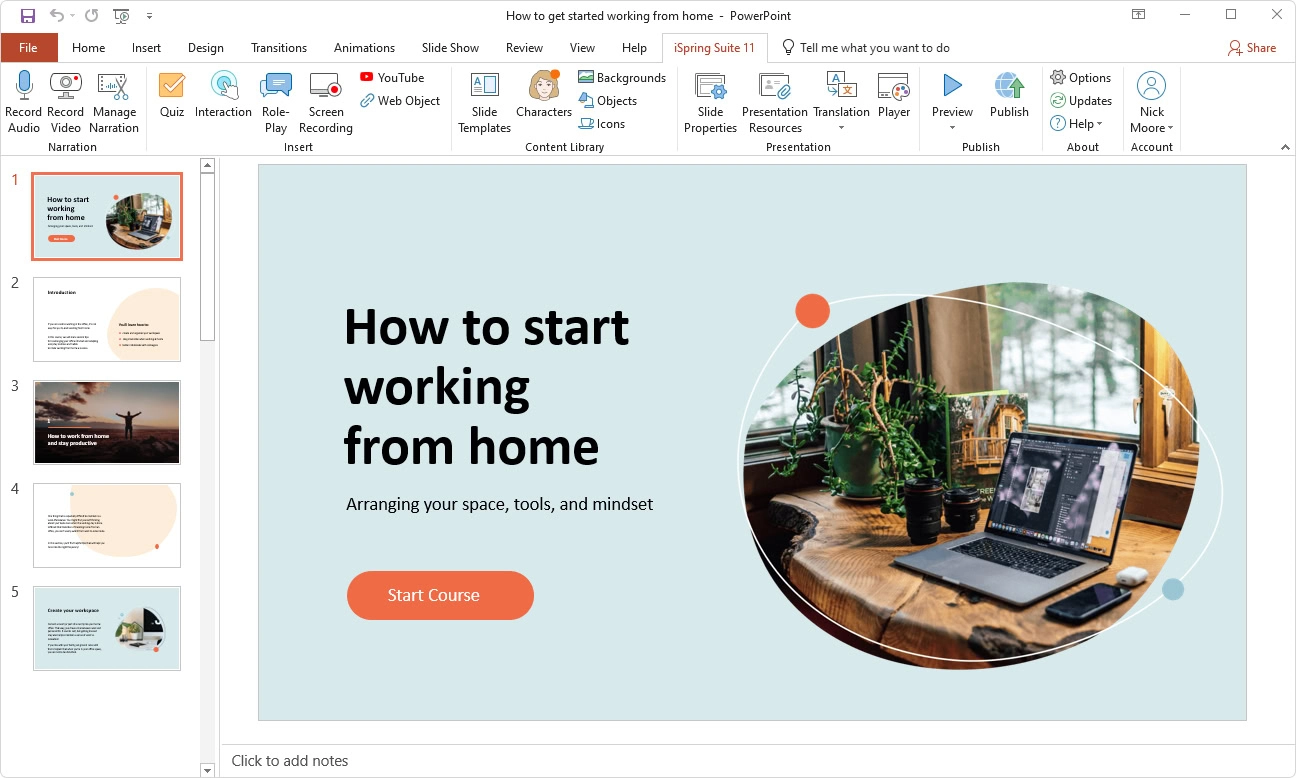
iSpring Suite operates as a PowerPoint add-in. You build your slides in PowerPoint, then use iSpring’s toolbar to layer on quizzes, dialogue simulations, screen recordings, and SCORM packaging. For educators who’ve spent years building slide decks and don’t want to learn an entirely new authoring environment, this approach removes the biggest adoption barrier: unfamiliarity.
Where iSpring Suite Shines for Educators
Real-World Scenario: A corporate university I worked with had 400+ existing PowerPoint decks for onboarding. Rebuilding them in a new authoring tool was a non-starter — the budget and timeline didn’t exist. iSpring Suite let the L&D team convert those decks into SCORM-compliant interactive courses by adding quiz slides, narration, and dialogue simulations directly inside PowerPoint. They migrated their entire library in under two months.
The dialogue simulation feature is particularly useful for soft-skills training. You script a conversation tree (e.g., a customer complaint scenario), assign character images and branching responses, and iSpring generates a playable simulation. It’s not as technically deep as ActivePresenter’s event–action system, but for “choose your response” style interactions, it’s fast and effective.
Strengths
- Seamless PowerPoint integration — zero learning curve for existing PPT users
- Solid quiz engine with 14 question types
- Dialogue simulation builder for conversation-based training
- SCORM/xAPI export for LMS compliance
- Cloud-based collaboration via iSpring Space
Limitations
- Windows only, PowerPoint required. macOS educators are excluded entirely. And if PowerPoint isn’t your starting point, the add-in model offers no advantage.
- Limited video editing capabilities. Screen recording exists but is basic. You won’t find multi-track timelines, chroma key, or advanced cursor editing.
- No automatic software simulation from recordings. You can record a screencast and embed it, but you can’t auto-generate interactive click-through practice the way ActivePresenter does.
- Subscription-only pricing, and it’s not cheap. iSpring Suite costs significantly more per year than ActivePresenter’s perpetual license. For individual educators or small teams, the math is hard to justify.
- Interactivity ceiling. Beyond quizzes and dialogue sims, building complex conditional logic or variable-driven interactions requires workarounds that PowerPoint wasn’t designed for.
Who Should Choose iSpring Suite?
Organizations with a massive existing PowerPoint library that need rapid conversion to interactive, LMS-ready courses. If your content already lives in .pptx files and your team knows PowerPoint inside out, iSpring Suite is the fastest path from static slides to trackable training.
Pro Tips
- Use iSpring’s “Engagement Interactions” (tabs, accordions, timelines) to break up slide-heavy content. Learners disengage after 4-5 consecutive text slides — an interactive tab set resets their attention.
- Record narration directly inside iSpring’s PowerPoint toolbar rather than importing external audio files. The sync-to-slide feature saves significant alignment time.
- Leverage iSpring Space for review cycles. Instead of emailing .pptx files back and forth with subject matter experts, publish a review link. Stakeholders comment directly on the interactive preview — no PowerPoint installation required on their end.
Head-to-Head Comparison Table
| Feature | ActivePresenter 10 | Camtasia | iSpring Suite |
| Screen Recording | ⭐⭐⭐⭐⭐ (data-aware capture) | ⭐⭐⭐⭐ | ⭐⭐⭐ (basic) |
| Video Editing | ⭐⭐⭐⭐⭐ (multi-track, chroma key) | ⭐⭐⭐⭐⭐ | ⭐⭐ |
| Auto Software Simulations | ✅ Yes | ❌ No | ❌ No |
| Quiz & Assessment | ⭐⭐⭐⭐⭐ (9+ types, scoring logic) | ⭐⭐⭐ (basic) | ⭐⭐⭐⭐ (14 types) |
| Branching & Conditional Logic | ⭐⭐⭐⭐⭐ (event–action system) | ⭐⭐ | ⭐⭐⭐ (dialogue sims) |
| SCORM/xAPI Export | ✅ Yes | ❌ No | ✅ Yes |
| AI Features | ✅ TTS, auto-captions | ✅ Auto-captions | ✅ TTS, AI assist |
| Platform | Windows + macOS | Windows + macOS | Windows only (requires PPT) |
| Pricing Model | Perpetual license + Free version | Subscription only | Subscription only |
| Best For | Full interactive training production | Polished linear video tutorials | PowerPoint-to-eLearning conversion |
5 Insider Tips for Building Better Interactive Training Videos (Regardless of Tool)
These are lessons from the production floor, not the marketing page:
- Front-load your first interaction within 90 seconds. If learners watch three minutes of narration before they’re asked to do anything, you’ve already lost the engagement battle. Place a low-stakes quiz question or a clickable hotspot early to establish the expectation: “This isn’t a passive experience.”
- Record at 1080p even if your screen is 4K. Most LMS players and learner devices render at 1080p. Recording at native 4K quadruples your file size and processing time without visible quality improvement for the end user. In ActivePresenter, set your recording area to 1920×1080 before you hit record.
- Use silence strategically, not accidentally. Before recording narration, close every application that might produce notification sounds. Record 10 seconds of “room tone” at the start of every session — you’ll use it to patch over cuts and maintain consistent background ambience. ActivePresenter’s audio noise reduction handles the rest.
- Test your SCORM package on your actual LMS before announcing the course. I’ve seen beautifully authored modules fail because the LMS interpreted the completion trigger differently than the authoring tool intended. Upload, enroll a test account, complete the course, and verify the gradebook entry. Every. Single. Time.
- Version your project files like a developer versions code. Name files with dates and version numbers (e.g., OnboardingModule_v2.3_2026-04-09.approj). When a stakeholder says “actually, can we go back to the version from two weeks ago?” — and they will — you’ll thank yourself.
The Verdict: Which Tool Should You Choose?
Let me make this simple:
Choose ActivePresenter if you need the full spectrum — screen recording, video editing, interactive simulations, branching logic, quizzes, and LMS-ready export — in one application, at a price that doesn’t require annual budget approval. It’s the tool that scales from a single educator’s YouTube tutorial to an enterprise’s 200-module onboarding program. The learning curve is real, but the return on that investment is enormous.
Choose Camtasia if your training videos are primarily linear (watch, learn, move on), you don’t need SCORM compliance, and you value a polished, beginner-friendly editing experience above deep interactivity.
Choose iSpring Suite if your organization has hundreds of existing PowerPoint decks that need to become interactive, LMS-trackable courses — and your team isn’t ready to adopt a new authoring environment.
Start Building, Not Just Recording
The gap between a training video and an interactive training experience is the gap between a learner who watched and a learner who can perform. The tools exist. The barrier isn’t technology — it’s choosing the right one and committing to the workflow.
If you’re ready to see what a true all-in-one interactive training workflow looks like, download ActivePresenter for free — no time limit, no feature restrictions, no credit card. Build your first interactive simulation this week. You’ll feel the difference in your next training session.
And if you get stuck, the Atomi Systems community and support team are genuinely responsive — something I can say from years of firsthand experience, not from a press release.
Your learners deserve more than a play button. Give them something to do.