
You have many PowerPoint files and want to reuse them in ActivePresenter projects, but you don’t know how. Don’t worry. This tutorial will show you how to import PowerPoint presentations into ActivePresenter 10 – a course online creation tool
This article covers:
As you know, there are several ways to create a new project in ActivePresenter 10. For example, create a project from a blank one, themes/templates, or video files. Meanwhile, importing PowerPoint is the method of creating a project by using available PowerPoint representation. ActivePresenter 10 allows you to import PowerPoint slides into the app to create a new project.
Import PowerPoint Files to ActivePresenter
You can import PowerPoint slides directly into ActivePresenter 10 even if your computer doesn’t have Microsoft PowerPoint installed. Regarding the PowerPoint animations (if any), you can select to import them to either the main timeline or click sequence timeline. To customize this setting, before importing, access the ActivePresenter Start Page > click on Preferences (the gear icon) to open the dialog > Miscellaneous tab > Import PowerPoint animations to the main timeline. Select this option if you want to import them into the main timeline. Otherwise, they will be inserted in the Click Sequence timeline by default.
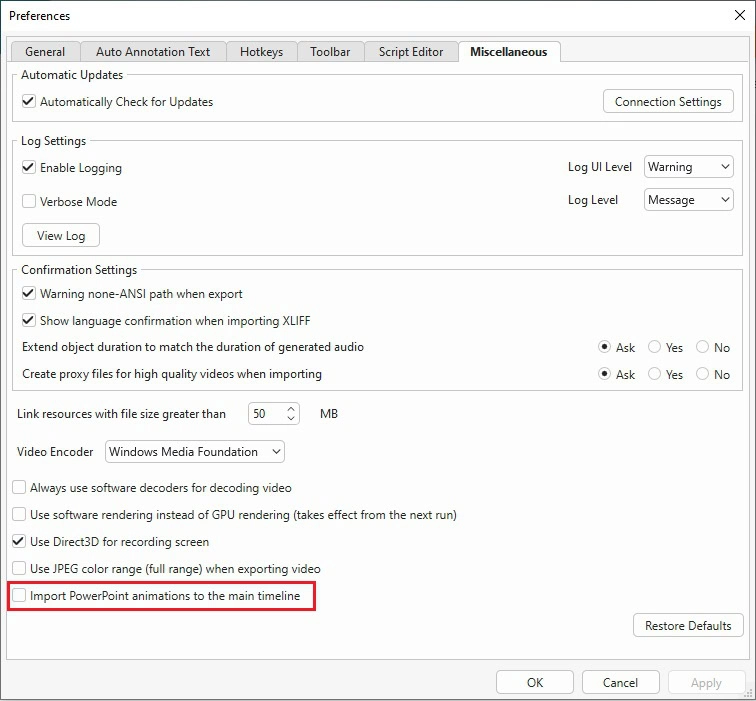
Then, follows either of these 2 ways to import PowerPoint slides into ActivePresenter 10:
- On the Start Page, click Import PowerPoint > browse and select the PowerPoint file you want to import.

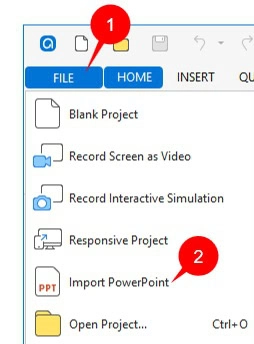
- In the workspace, click the File button (1) > Import PowerPoint (2) > select the PowerPoint file on your computer.
Customize Imported Slides
After importing the file, ActivePresenter 10 will launch a new project which includes all slides of the PowerPoint presentation. Each PowerPoint slide becomes an ActivePresenter one. It means you can work with the imported slides as usual. In particular, it’s able to use tools and commands to edit them and their content, for example:
- Copying, cutting, or deleting slides,
- Splitting and merging slides,
- Changing slide transition effects, and more.
Note: ActivePresenter 10 cannot handle the *.odp files created by OpenOffice and LibreOffice. You need to convert these files to pptx files first, then import them into ActivePresenter 10.
So now, you have learned how to import PowerPoint presentations into ActivePresenter 10 to create a new project.
Download ActivePresenter 10 and get started

Don’t forget to follow our Tutorials page and YouTube channel for more informative articles and videos.
See more: